Table of Contents
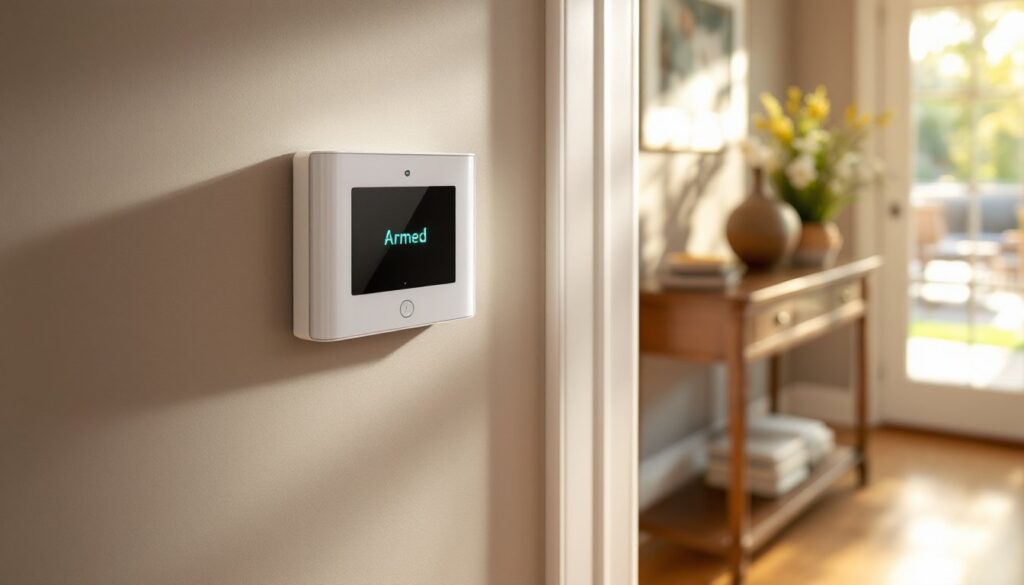
ToggleA keypad is the frontline of any smart home security system, it’s how you arm, disarm, and manage your SimpliSafe system without fumbling for a smartphone app. The SimpliSafe keypad combines touchscreen convenience with wireless connectivity, giving homeowners a quick, tactile way to control their security. Whether you’re installing your first system or upgrading an existing setup, getting your SimpliSafe keypad configured properly ensures smooth, reliable operation. This guide walks you through the essentials: what to know before installation, how to mount it correctly, programming codes, and how to fix the most common hiccups. By the end, you’ll have a fully functional keypad ready to protect your home.
Key Takeaways
- The SimpliSafe keypad is a wireless control hub that communicates via encrypted signals with no hardwiring required, making installation faster and cleaner than traditional systems.
- Mount your SimpliSafe keypad at eye level (48–60 inches) near a main entryway with clear line-of-sight to the base station to maximize accessibility and wireless signal strength.
- Create individual user codes for family members and guests, with expiration dates for temporary access, to maintain accountability and security across your system.
- Battery life typically lasts 12–18 months with alkaline batteries; if draining faster, relocate the keypad closer to the base station to reduce signal strain.
- Most SimpliSafe keypad issues like connectivity loss, unresponsive touch, or code entry problems can be resolved with power cycling or adjusting device placement.
Understanding SimpliSafe Keypad Features and Compatibility
The SimpliSafe keypad is the wireless control hub for your security system. It communicates via encrypted radio signals to your base station, no hardwiring needed, which saves a lot of wall damage during installation. The Gen 3 keypad features a touch-sensitive display, proximity sensors for motion-based unlocking, and a built-in sounder that emits alarm alerts. It runs on four AA batteries (alkaline recommended for reliability) and connects to your SimpliSafe base station within a 600-foot range under normal conditions.
Compatibility is straightforward: the SimpliSafe keypad works with the current SimpliSafe Gen 3 system and newer. If you have an older SimpliSafe system (Gen 1 or 2), check your base station’s model number before purchasing, older hardware may not support the Gen 3 keypad. You’ll also need an active SimpliSafe account and the mobile app to configure advanced features like custom codes and notifications. According to comprehensive SimpliSafe home security reviews, the keypad’s wireless setup makes installation faster than traditional hardwired systems, and most users get it operational in under an hour. The touchscreen responds quickly and displays system status, entry countdown timers, and notification messages clearly.
How to Install Your SimpliSafe Keypad: A Step-by-Step Guide
Choosing the Right Location for Maximum Accessibility
Placement matters. Mount the keypad at eye level (48–60 inches from the floor) near a main entryway, typically by your front door or garage entry. This keeps it visible and reachable without awkward reaching or bending. Avoid damp areas (kitchens near steam, bathrooms) and direct sunlight, which can degrade battery life and display clarity over time. The keypad needs a clear line of sight to the base station: walls and metal studs can weaken the wireless signal, though 600 feet of range typically covers most homes. If you’re testing placement before final mounting, use removable adhesive or a small shelf, some homeowners prefer tabletop mounting on a console near the door rather than wall installation. Once you’ve found the sweet spot, secure it with the bracket and screws, ensuring it’s level and stable. If your home has multiple entry points, a second keypad in a secondary location (bedroom, garage) is a smart upgrade, though your system allows only one primary control keypad by default: check your subscription tier for multi-keypad support.
Programming Your Keypad: Codes and Customization
Creating and Managing User Codes Safely
Family members, housekeepers, and contractors all need codes, but each should have their own for accountability. The app lets you create up to 99 individual user codes (depending on your plan tier). When setting a code for someone temporary, like a cleaner or repair technician, assign an expiration date. The code automatically deactivates after that date without you manually removing it, reducing the risk of forgotten guest access.
PIN entry on the keypad is silent (no audible beeps on the display, though the system logs it): if you’re concerned about shoulder-surfing or visible key presses, enable Proximity Unlock in settings. This feature triggers the keypad to auto-disarm when a paired mobile device (smartphone) comes within range, eliminating the need to punch in a code at all. Proximity unlock is especially convenient for late-night entries with hands full of groceries. If your phone dies or you lose it, the PIN remains your fallback. Periodically review your active codes in the app, trim any unused codes and update any codes that might’ve been shared too widely. Unlike hardwired systems, your SimpliSafe keypad’s code management is cloud-synced, so changes ripple across all paired devices instantly.
Troubleshooting Common Keypad Issues
Most keypad problems fall into a handful of categories: connectivity loss, battery drain, unresponsive touch, or code entry hiccups. Here’s how to diagnose and fix them.
Keypad won’t connect to the base station:
First, confirm the base station is powered and online (green light steady on the base). Check that the keypad is within 600 feet and not blocked by thick metal walls. Move the keypad closer to the base temporarily to test: if it connects, obstruction is the culprit, relocate either device or add a Wi-Fi extender nearby. Restart the keypad by removing and reinserting batteries, waiting 10 seconds, then replacing them. Restart the base station by unplugging it for 30 seconds. If still no connection, re-pair the keypad using the app’s pairing wizard (remove it from device list first, then add it again).
Batteries drain quickly:
Four AA alkaline batteries typically last 12–18 months under normal use. If you’re replacing them every few months, the keypad is likely in a poor signal area, forcing it to transmit harder and more often. Move it closer to the base or ensure clear line-of-sight. Avoid cheap or off-brand batteries: they deliver inconsistent voltage, which drains faster. Some users report better longevity with rechargeable NiMH batteries, though the voltage curve differs slightly, test one first before converting all four.
Touchscreen is unresponsive or sluggish:
Clean the display with a soft, dry cloth or slightly damp microfiber cloth, not water directly. Dirt, dust, and fingerprints degrade touch sensitivity. If sluggishness persists, the display itself may be failing: contact SimpliSafe support for a replacement. In the meantime, the physical buttons on the left side of the keypad (typically Arm and Disarm) still function and bypass the touchscreen entirely.
Code entry doesn’t work or the keypad “ignores” input:
Ensure you’re entering the correct PIN (check the app to verify your active codes). If the PIN is correct but the keypad doesn’t respond, power-cycle it (remove batteries 30 seconds, replace). If a specific code refuses to work across multiple attempts, delete it from the app and recreate it. Also confirm the system isn’t in an error state, a persistent red alert on the base station can prevent arm/disarm via keypad until you clear it via the app or base station override button. According to SimpliSafe system reviews, code input issues are usually user-side (wrong PIN, low battery, or poor connectivity) rather than hardware failure. Power cycling resolves 80% of these complaints.
Conclusion
Your SimpliSafe keypad is now set up and ready to protect your home. Take a few moments to test each user code, confirm the arm/disarm commands register on the base station, and adjust placement if needed for comfort and accessibility. Keep batteries fresh, update codes when residents change, and familiarize yourself with the settings menu, small tweaks like proximity unlock or custom arm modes can save you seconds daily. With straightforward installation and intuitive management, a properly configured SimpliSafe keypad becomes an invisible part of your home security routine.